Advertise

Powered by Blogger.
 
Showing posts with label Tricks. Show all posts
Monday, 8 October 2012

Add Uninstall Option In Right Click Context Menu

0 comments

Add Uninstall Option In Right Click Context Menu

Now you can add Uninstall option in your right click menu with
a freeware utility Menu Uninstaller
Using Menu Uninstaller you can uninstall any program with a single right click on its shortcut.It is compatible with windows xp,Vista and windows 7.


How To Add Uninstall Option In Right Click Context Menu:-

  • Download Menu Uninstaller by clicking here
  • Click on the setup to install it in your PC.Installation process is fairly simple (Just Follow Guidelines)
  • Now Uninstall option will available in right click menu.
To remove any program simply right click on its shortcut and select Uninstall Option
Read more...

How to Remove Annoying Facebook Ads From Your Facebook Profile ?

0 comments

How to Remove Annoying Facebook Ads From Your Facebook Profile ?


Hi all users, as title describes the story that today we're going to learn how to remove sponsor ads or ads from your facbook profile. As you know that facebook is most a popular social networking website out there, but unfortunately their main concern is money, so as long as they’re making money they’re fine with their ads, for the most part. Obviously if you accept advertisements from everyone and anyone you’ll get spammy ads from time to time, it’s impossible for Facebook to police every advertisement, no matter how many resources they have. To find out how to remove ads from Facebook, let's get started.

Follow The Steps Below to Remove Your Facebook Ads :
 1. First of all you will need to be using either Firefox or Google Chrome as your web browser. Both are the worlds quickest and best browsers, you should be using one of them if you aren’t already. Here we consider both of them.

2. To remove ads from Facebook, the first thing you should do is install Adblock Plus. Here we want to mention that when you download Chrome that it comes with an extension called Adblock, make sure you download Adblock Plus for Chrome, they’re completely different. If you’re using Firefox, download Adblock Plus for Firefox.

How To Remove Ads From Facebook And Other Sites

That’s it, that is  how to remove ads from Facebook. Adblcok Plus for Firefox and Chrome is already set up to block ads from Facebook, so we needn’t do anything else. If you’re serious about removing ads from every site though, you can check out NoScript as well. When someone who places ads on their sites wants to stop ad-blockers from preventing ads being displayed, they try to hide the ads in a script. You can block these as well by using NoScript for Chrome, or NoScript for Firefox. Adblock Plus and NoScript work hand in hand a blocking anything from Java Script to Flash.

If you do eventually see ads on Facebook, then you may need to update the filters. To do so, simply go to Tools, then Adblock Plus Preferences, click Filters, then click Update All Subscriptions, then click Apply then O
Read more...

Increase your Utorrent speed by 80%

0 comments

Increase your Utorrent speed by 80%


Lets get started. If you dont have Utorrent, Download it from here


Remember to increase torrent speed please disable firewall before you use it. Now Open it up and follow these screenshots tutorial:


 For connection setting I Here checked enable upnp port mapping, enable NAT-PMP port mapping and i use 45682 for random port.

 Checked use additional upload slots if upload speed <90% and follow the value setting like screenshot.
 Checked for enable dht network, enable dht for new torrent, enable local peer discovery, ask tracker for scrape information, enable peer change, allow incoming legacy connections and enable outgoing protocol encryption.

 Setup net.max_halfopen to 90


 That is it, You have just tweaked the speed of Utorrent by 80%
Remember, If the torrent has no seeds, This will not wor
Read more...

Hack/Crack a WiFi Network

0 comments

Hack/Crack a WiFi Network


Hi all users I think many Windows users here are struggling to hack WiFi networks because most of the tutorials are based on BackTrack and other Linux Tools . So today I'm here for sharing a method to Crack WiFi networks using WEP security protocol .The WEP is a very vuarable to attacks and can be cracked easily .
It takes about 5-6 hours if the password is weak a high signal of the WiFi network you are going to hack and you have sometimes 10-12 for more complicated passwords and if the WiFi signal of the Network is weak .The time taken also changes if the WiFi network you are going to hack has many other clients already accessing it . 
You will be using two tools :
1. Commview for WiFi : You will use this tool for capturing the packets sent and recieved through the Access Point you are going to hack .The more packets you capture the better chances of cracking the password .You will need more than 1,00,000 minium packets to crack the password .The packets will be captured in the .ncp format .You will use this tool to convert the .ncp to .cap .

Note :- Some WiFi cards are supported by Commview only in Windows 7 so i suggest you install Win 7 in your Virtual Machine if your card isn't supported .
2. Aircrack-Ng GUI : You will use this tool to crack the password of the Access Point using the . Cap files you obtained from the Commview application .

Note :- You need to run this as administrator .

Now Get Ready to Crack :

Step 1 : Install CommView for WiFi . It doesnt matter whether you install it in VoIP mode or Standard mode . I used VoIP . It automatically installs the necessary drivers . Allow it to install .

Note :- You will not be able to connect to any Network using WiFi when using CommView .

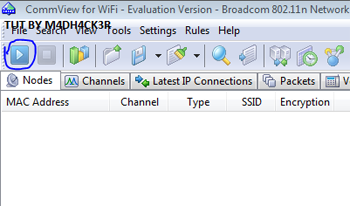
Step 2 : Click on the PLAY ICON in the Left First .
 
 
Step 3 : (Choosing the Network (a) ) : A new window should pop up now. Click on the START SCANNING button .


Step 4 : (Choosing the Network (b) ) : Click on the WiFi network you want to hack in the Right Coulumn and Click on CAPTURE.

Note :- This tutorial is only for WEP protected networks .
 
 
 Step 5 : (Capturing the Packets) : The windows should close now and you should see that CommView has started Capturing Packets .
 
Step 6 : (Saving the Packets ) : Now that the Packets are getting captured you need to Save them. Click on Settings->Options->Memory Usage Change Maximum Packets in buffer to 20000.
 
Click on the LOGGING Tab .
Check AUTO-SAVING
In the Maximum Directory Size : 5000
Average Log File Size : 50
 
Now CommView will automatically Start Saving packets in the .ncp format at a size of 20MB each in the specified directory .
Step 7 : ( Concatenating the Logs ) : Since you are capturing a lot of logs you will need to concatenate them into once file . To do this go to Logging and click on CONCATENATE LOGS Choose all the files that have been saved in your specified folder and Concatenate them .

Now you will have one .ncf file .
Step 8 : (Converting .ncf to .cap ) : Now that you have one file with all the packets you need to Convert it into .cap file for AIRCRACK to crack .

Click on File->Log Viewer->Load Commview Logs-> Choose the .ncf file. Now File->Export->Wireshark/TCP dump format .

Aircrack Part :

Now for the Second Part Cracking this is very simple . Just open the Aircrack Folder->Bin->Aircrack-ng GUI.exe Choose the .cap file and you should be able to do the others .
If you have any questions or having problems post a thread il reply . This is a simple tutorial . There is more advance using the rules and stuff but I havnt used it yet . This worked for me . Hope you found it useful . Took a lot of time . Please leave your feedback.
Read more...

Go Offline for Selected Friends on Facebook

0 comments


As we know that Logging In to our Facebook Account set our Default Status to Online. But what if we want to set our Status Offline even if we are Logged In to Our Facebook Account ?
So for that there is the Trick on How to Go Offline for Selected Friends on Facebook

 So to use this Trick just follow these Simple Steps:

1) Log In to your Facebook Account.
2) Open the Chat Box of the Friend to which you want to Go Offline.

3) Click on the Star Button from the Top of the Box and Select " Go Offline to " Option.
4) Now it is done. Your Friend would no Longer be able to Chat with you Online.

>> If you want to Revert it back, i.e. Go Online for that Friend then Select " Go Online to " Option from Chat Box.
You will be again able to Chat with your Friend Online.
>> Now if you want to Go Offline to all your Online Friends then Click on Star Button on Chat Bar and Select " Go Offline ".
Read more...

Labels

 
Rana Movies watch online © 2011 DheTemplate.com & Main Blogger. Supported by Makeityourring Diamond Engagement Rings

You can add link or short description here